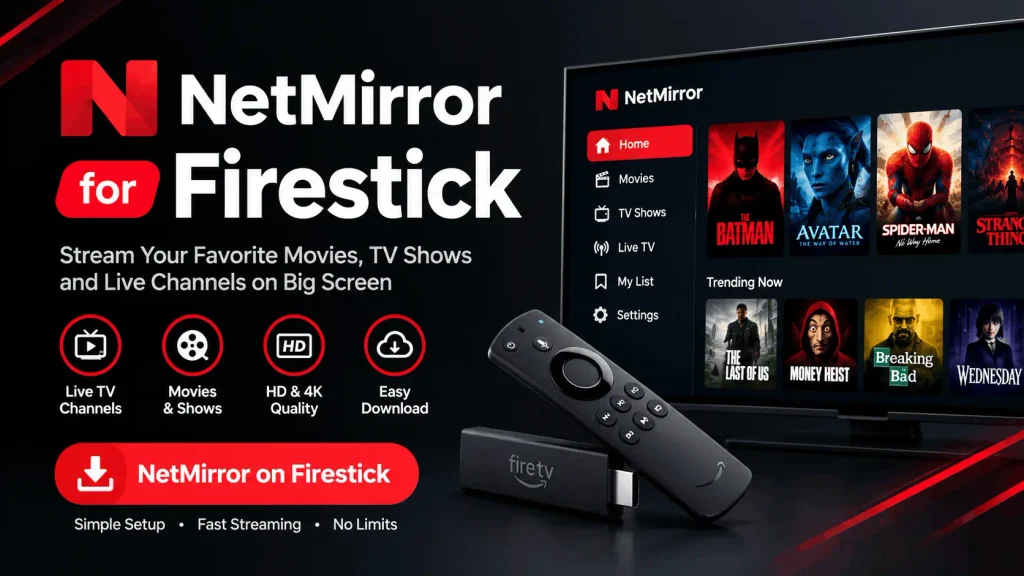
NetMirror for Firestick — Download & Install on Fire TV (2026 Guide)
Want to watch NetMirror on your TV with an Amazon Fire TV Stick? Fire TV devices run Fire OS, which is based on Android — so the NetMirror APK can be installed on a Firestick with a simple sideloading method using the free Downloader app.
This guide explains everything step by step: what you need before installing, the full Downloader method, how to use the app with your remote, and fixes for common Firestick problems.
Free • v3.0 • 54.4 MB • Android 7.0+ • Works on Fire TV Stick & Fire TV Cube
How to Install NetMirror on Firestick
Follow these steps in order. The full process takes about five minutes.
Turn On Developer Options
Go to Settings → My Fire TV → About.
Select your device name and press it 7 times, until you see “You are now a developer”.
Go back one screen — a new “Developer Options” menu is now visible.
Allow Downloader to Install Apps
Open Developer Options → Install unknown apps.
Find Downloader in the list and turn it ON. On older Firestick models, this setting is called “Apps from Unknown Sources”.
Install the Downloader App
From the Home screen, open Search and type “Downloader”.
Select the Downloader app by AFTVnews (orange icon) and press Download / Get.
Downloader is free and available in the Amazon Appstore.
Download the NetMirror APK
Open Downloader, select the Browser option, and type our short website address:
thenetmirrorapks.online
When our website opens, scroll to the green Download NetMirror APK button and press it — the file will start downloading inside Downloader.
Wait for the download to finish — the file is 54.4 MB, so it can take a minute on a slow connection.
Install NetMirror
When the download finishes, the install screen opens automatically — press Install.
Wait for “App installed”, then press Open to launch NetMirror, or Done to open it later from your app list.
Delete the APK File (Recommended)
After installing, Downloader offers to delete the downloaded APK file — press Delete.
This frees 54.4 MB of space. The installed app is not removed — only the setup file is deleted.
How to Use NetMirror on Firestick
Press and hold the Home button on the remote and select Apps, or find NetMirror under Your Apps & Channels.
Open NetMirror and move around with the remote’s direction pad; press the centre button to select.
Use the search option to find a movie or show, and start playing it like any other streaming app.
Tip: highlight the NetMirror icon, press the menu button on the remote, and choose “Move to front” so it appears first on your home screen.
NetMirror Firestick Features
NetMirror Not Working on Firestick?
APK Not Installing
Check that Install unknown apps is ON for Downloader (Step 2).
Free some storage: Settings → My Fire TV → About → Storage.
Delete the partial download in Downloader and download the APK again.
Buffering or Slow Playback
Restart the Firestick (Settings → My Fire TV → Restart) and your router.
Move the stick closer to the router, or use the HDMI extender to reduce heat and improve Wi-Fi.
Lower the video quality inside the app while streaming on a slow connection.
App Keeps Closing
Clear the cache: Settings → Applications → Manage Installed Applications → NetMirror → Clear cache.
If it still closes, uninstall the app and install it again with the steps above.
On very old Firestick models, low memory can cause closing — closing other apps first can help.
Is NetMirror Safe on Firestick?
Sideloading means installing an app from outside the Amazon Appstore, so always be careful about where the file comes from. The APK linked on this website is the file our team downloaded and checked: it is version 3.0 (54.4 MB), and it only requests basic permissions — Internet, network / Wi-Fi state, and write settings. It does not ask for contacts, camera, location, or storage access.
After installing, you can turn the Downloader install permission OFF again in Developer Options until you need it next time. And remember: app safety and content legality are separate things, so follow the copyright rules of your country.
NetMirror on Firestick Pros and Cons
✔ Pros
Turns any TV with HDMI into a streaming TV.
No Android TV or TV box needed — the stick is enough.
Full-screen TV experience with remote control.
Free to install and use.
One-time setup of about five minutes.
✘ Cons
Not in the Amazon Appstore — manual install is required.
The first-time setup has several manual steps.
Very old Firestick models can be slow.
Updates are manual — new versions must be installed the same way.
Frequently Asked Questions
Final Words
A Firestick is one of the easiest ways to use NetMirror on a TV. The setup is a one-time, five-minute job: turn on Developer Options, allow Downloader, and install the APK with the steps above. After that, NetMirror sits in your app list like any other streaming app.
For other devices, see our Smart TV guide, the NetMirror APK homepage, or the old versions page if a different build works better on your device.